GPT-Image-2 on Genoriq: From a Clear Brief to a Controlled Image Edit
Genoriq Team · Oct 5, 2026
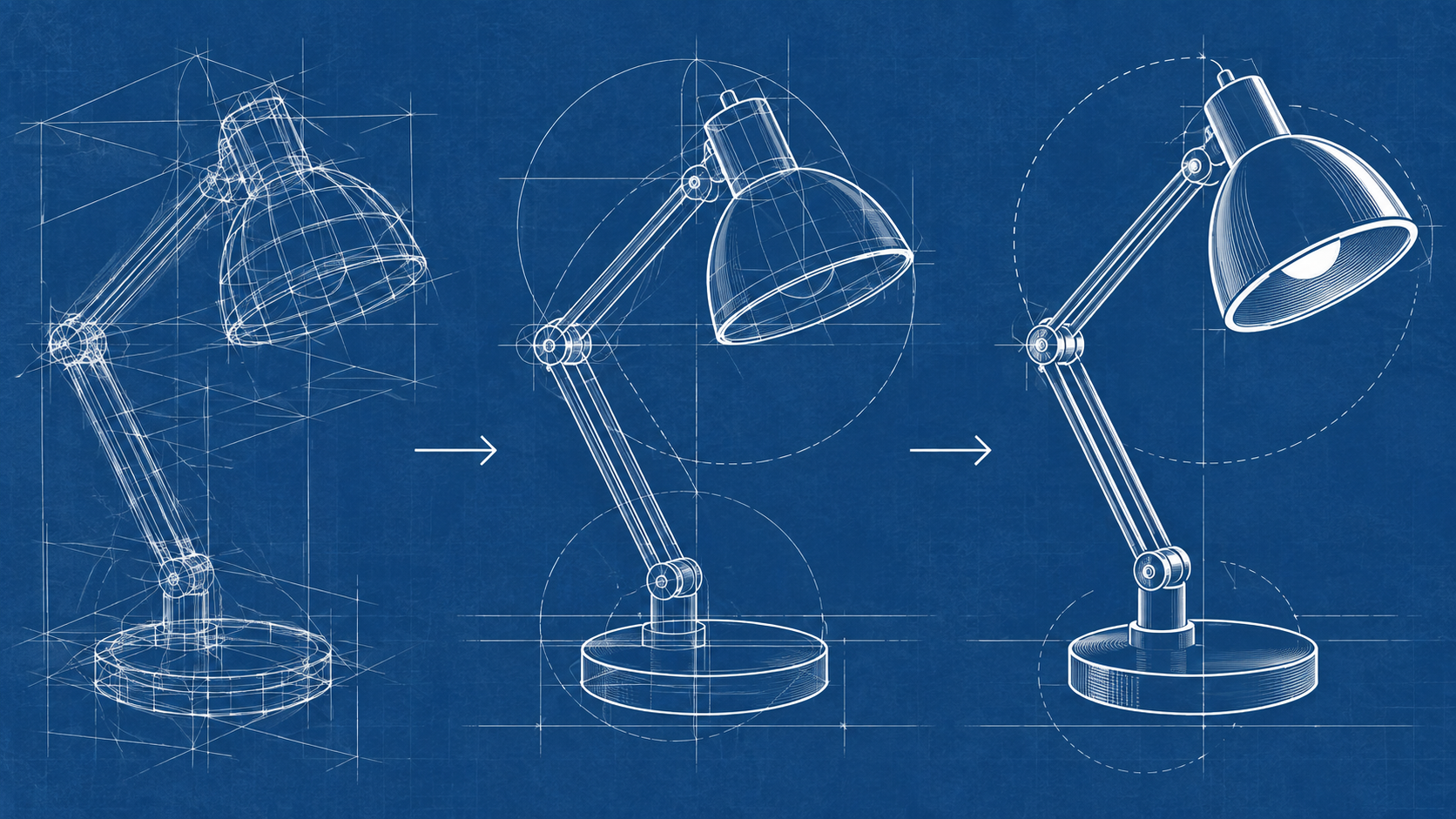
GPT-Image-2 is an image-generation and editing model documented by OpenAI. In a creative workspace, its practical value depends on how you specify the image and how carefully you review revisions. The model name is the starting point; the brief still needs a subject, composition, and definition of success. Explore on Genoriq: GPT-Image-2.
On Genoriq, you can approach it through two related workflows: creating a new image from text and modifying an image supplied as a reference. This guide concentrates on those workflows rather than an API integration or a benchmark.
All prompts here are original examples to adapt. They are not accompanied by claimed test results, and the editorial cover should not be read as a GPT-Image-2 performance sample.
Choose creation or editing deliberately
Use text-to-image when the visual can be invented. A fictional ceramics collection, a conceptual article cover, or a mood-board scene can start with a written brief. The model has room to make decisions you have not specified.
Use image editing when something from an existing image matters: a product shape, a character's appearance, an arrangement, or a background you want to retain. Upload the relevant image and explain its role. A reference is most useful when you state what should remain stable and what can change.
An editing request does not guarantee pixel-perfect preservation. Compare the result against the source before using it in a place where object identity, text, or fine details are important.
Understand the Genoriq controls
The configured GPT-Image-2 form includes aspect ratio, resolution, quality, and output quantity. Its current resolution menu contains 1K, 2K, and 4K choices, while the quality menu is specific to the site's provider integration.
Treat these labels as workspace controls. They should not be copied into an OpenAI API request on the assumption that the provider uses identical parameter names or values. For creative work, choose from the active form and inspect the actual generated file.
Start with one output and the form's default quality when exploring a direction. Increase a supported setting because the result needs more detail or the final placement requires it, not simply because a larger label sounds safer.
Write a brief you can evaluate
Suppose the assignment is an editorial image for a guide about organizing a creative project. Decide which idea the visual should communicate. An ordered studio desk might communicate preparation; a composition transforming from sketch to object might communicate iteration.
Now define the visual hierarchy. The main object should be unmistakable. Supporting objects should contribute to the idea instead of competing with it. If the image sits beside a headline, decide whether it needs empty space or can fill the entire frame.
Finally, specify what should not be added. “No text, logos, or interface panels” is a concrete instruction for an editorial illustration. A long list of unrelated exclusions is less helpful than a coherent positive description.
Prompt one: create an editorial still life
Create an editorial still life about turning an idea into a finished design. A terracotta vase stands beside a graphite sketch of the same vase and two small material samples. Warm ivory studio background, gentle afternoon light from the left, realistic matte textures. Arrange the objects in a clear visual progression from sketch to finished object. Wide horizontal composition with comfortable empty space above. No lettering, logos, or decorative symbols.
This brief establishes a story through objects and arrangement. Review whether the sketch and vase feel related, whether the material samples remain secondary, and whether the image still reads clearly at thumbnail size.
If the scene feels busy, remove an object before asking for a different artistic style. Simplifying the composition often gives you a more useful next test.
Prompt two: make a focused reference edit
Upload a suitable image and select the editing mode.
Change only the background environment to a quiet, sunlit workshop with pale wooden shelves softly out of focus. Preserve the main vase's silhouette, opening, terracotta color, surface texture, and position within the frame. Keep the original viewing angle and maintain a believable shadow beneath the vase. Do not add flowers, labels, or extra handles.
This is a constrained edit rather than an invitation to redesign the entire image. Compare the opening and base of the vase with the source; small structural changes can matter more than an attractive background.
If the result alters the vase too much, try a simpler background with fewer objects. Keeping the intended change narrow makes it easier to diagnose what is happening.
Prompt three: build an image with space for copy
A clean product scene with a fictional cream ceramic desk lamp placed in the left third of a wide frame. The lamp has a simple rounded shade and a stable circular base. Warm light falls across a pale textured wall. Keep the right half visually quiet, with a gentle tonal gradient suitable for a dark headline added later. Refined natural product photography, restrained palette, no text, no visible branding.
The prompt asks the image to support typography without asking the model to produce the final headline. That keeps later editing flexible and avoids baking one language into the visual.
Check the crop at the intended display size. Empty space that looks adequate in a large preview can disappear when the image becomes a small card or a mobile banner.
Iterate with a change log
After the first generation, record one thing that works and one thing that blocks use. For example: “The lighting is right; the lamp is too close to the edge.” The next prompt should preserve the lighting while moving the lamp inward.
Avoid changing the subject, palette, viewpoint, and lighting simultaneously unless you intend to abandon the direction. A small change log makes successful decisions visible and helps you return to an earlier version if a later edit is worse.
Save the prompt and reference with the chosen result. When you need another image in the series, reuse the stable visual choices while changing the subject and composition for the new article.
Review details before delivery
Inspect the focal object, repeated patterns, shadows, and any generated text. If the image contains a factual diagram, product label, or other information that must be exact, verify it separately. A convincing appearance is not evidence that every detail is correct.
Look at the full-size download and the final placement. The first reveals small defects; the second reveals whether the visual hierarchy and contrast work for the reader. Both checks answer different questions.
For transparent-background work, use only an output workflow that explicitly supports the format you need. A prompt asking for transparency is not proof that the downloaded file contains an alpha channel.
A useful first session
Begin at the GPT-Image-2 workspace. Choose one of the examples, adapt it to your actual subject, select the appropriate mode, and make one initial generation. Keep the successful elements and revise the most important mismatch.
For additional model options, visit the AI image generator. The goal is a usable asset with an understandable revision history: a clear brief, a deliberate edit, and a result you have checked in its real context.
Common questions
Can an edit preserve every product detail exactly? Treat preservation as a goal to check, not an assurance. Compare the outline, color, lettering, and small features against the reference before delivery.
Does asking for transparency create a transparent file? Not necessarily. Use a workflow that explicitly supports the required format and inspect the downloaded file's alpha channel.
Should every iteration use a higher resolution? Increase resolution when you need to inspect or deliver additional detail. Correct the composition and subject before increasing a setting.