Nano Banana LinkedIn Headshot Prompts: 5 Natural-Looking Styles
Genoriq · Oct 29, 2026
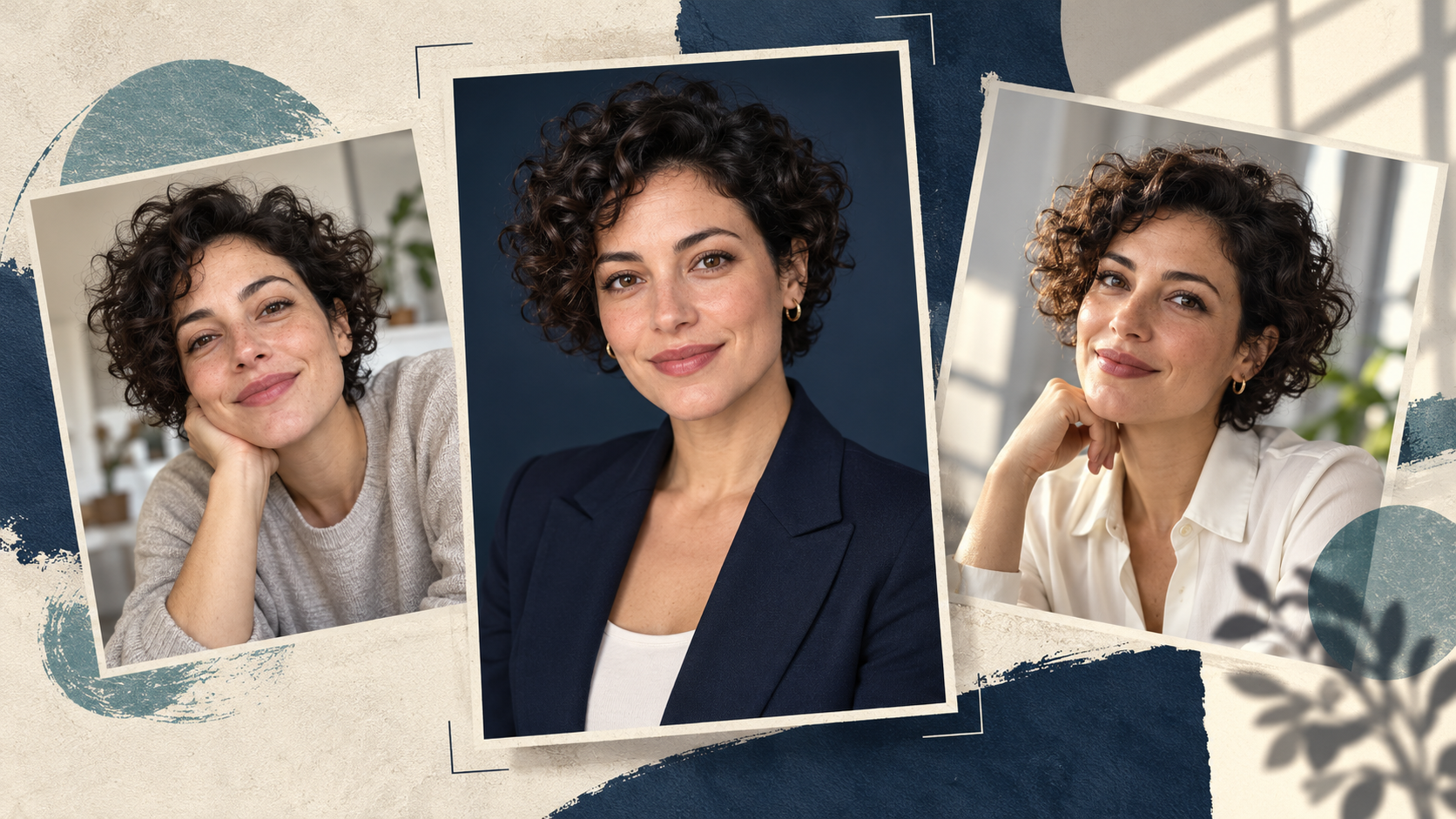
A useful Nano Banana LinkedIn headshot prompt starts with your own clear photograph and asks for a limited edit: cleaner surroundings, suitable clothing and believable light. The goal is a profile picture someone would recognize when meeting you, not a newly invented face.
Open Nano Banana 2 on Genoriq and choose Image editing. The five original prompts below are starting briefs, not tested-output claims. Each keeps the same person while exploring a different professional setting.
Start with a photograph that already looks like you
Use a recent, sharp image with both eyes visible, even illumination and enough space around your head and shoulders. A straightforward phone photograph can be more useful than a heavily filtered portrait. Avoid sunglasses, strong beauty filters, motion blur and a hand covering part of your face.
Choose a source with the expression you actually want. If you ask the model to invent a wide smile, a new angle and different lighting together, it must infer more information. For the first attempt, keep your pose and expression and change only the setting or clothing.
For a team page, agree on framing and background first. Use your own image or a photograph you have permission to edit.
Set up the edit on Genoriq
- In the Nano Banana 2 editor, select Image editing and upload one portrait.
- Choose 1:1 for a square profile image and 2k as a practical starting resolution. These are creative defaults, not LinkedIn upload requirements.
- Paste one prompt below. Replace clothing details with something you would realistically wear.
- Generate, then compare the face against the original before judging the background.
- If one detail is wrong, return to the original reference and make a smaller edit. Avoid repeatedly polishing an already altered face.
Nano Banana 2 is also called Gemini 3.1 Flash Image. For other versions, see the Gemini image guide.
Five Nano Banana professional headshot prompts
Each prompt assumes one uploaded portrait. Inspect glasses, hairlines, teeth and facial contours for unwanted changes.
1. A straightforward business headshot
Use this for a restrained, formal profile.
Edit the uploaded photograph into a natural professional
headshot of the same adult. Preserve their facial proportions,
age, skin tone, hairline, hairstyle, visible distinguishing
features and original expression. Keep a chest-up composition
with comfortable space above the head. Use a plain warm-gray
studio background, soft light from the front-left and a simple
navy blazer over a neutral shirt. Retain realistic skin texture
and natural asymmetry. Do not reshape the face, whiten the eyes,
add teeth or apply glamour retouching. Keep the result
believable as an ordinary professional portrait.
Check that the blazer neckline fits the original posture and that the face has not become narrower.
2. An approachable everyday office portrait
Try a relaxed workplace setting.
Keep the same person, facial features, age, hair and expression
from the reference photo. Create a relaxed chest-up office
portrait with a softly blurred, uncluttered workspace behind
them. Dress them in a plain dark-green knit top, without badges
or logos. Use broad, gentle window light and realistic skin
texture. Keep the background quiet, with no readable screens or
text. Preserve the original head angle and glasses if present.
The mood should be approachable and calm, without exaggerated
smiling or a polished fashion-ad appearance.
Review reflections in glasses and whether the background light agrees with the light on the face.
3. A creative professional's profile
Let color communicate personality without distracting from the face.
Use the uploaded portrait as the identity reference. Preserve
the person's face, age, skin tone, hairstyle and expression.
Make a contemporary creative-professional headshot against a
muted teal backdrop with subtle texture. Keep their existing
clothing if it is visible. Frame from the chest upward, with the
eyes near the upper third and room for a circular crop. Use soft
directional light, natural contrast and visible skin texture.
Avoid props, neon effects, dramatic shadows, invented
accessories and changes to facial structure.
If the textured backdrop competes with the eyes at thumbnail size, simplify it instead of sharpening the face.
4. A consistent team-directory portrait
Use the same brief with each colleague's own photograph.
Create a team-directory portrait from this person's reference
photo. Keep their identity, age, expression, hairstyle, skin
tone and visible clothing unchanged. Use a clean light-gray
background and soft balanced lighting. Place the person
centrally in a square chest-up composition with consistent
headroom and both shoulders comfortably inside the frame. Keep
natural skin texture and realistic facial proportions. Remove
background distractions only; do not redesign the person's
appearance. Leave sufficient space for a circular profile crop,
with no text, company marks or decorative graphics.
Compare head size and eye position across the set. Do not judge consistency by skin color, hairstyle or facial shape.
5. A natural-window-light portrait
Try this for a less formal professional introduction.
Edit the reference photo into a natural professional portrait
beside an unseen large window. Keep the same face, age,
hairstyle, skin tone, expression and clothing. Use a simple warm
off-white background with gentle daylight falling across the
face and soft, believable shadows. Maintain a chest-up
composition and the original head angle. Preserve fine skin
detail and ordinary imperfections. Avoid golden glamour
lighting, artificial eye sparkle, heavy blur and a plastic-skin
finish. The image should feel like a careful photograph taken in
a quiet room.
Look for uneven eye brightness or a shadow that makes one side of the face appear structurally different.
Fix the face before refining the style
It no longer looks like you: start again from the original photograph. Remove instructions that change pose, expression or hair. Ask for a background-only edit first, then reassess.
Skin looks waxy: remove terms such as “flawless” and “perfect.” Request ordinary skin texture and reduce the amount of retouching you describe. Higher resolution alone will not restore a changed face.
Clothing looks artificial: keep the original outfit and change the surroundings. Complex collars, hands near the neck and invented jewelry introduce extra details to check.
The crop feels cramped: preview the square image inside a circular mask in your usual editor. Check the hair, chin and shoulders at actual profile-picture size before uploading it.
Common questions
Can I make an AI headshot from a selfie? Yes, a clear selfie can serve as the reference. Strong wide-angle distortion or an obstructed face makes it a weaker starting point; another source photo may help more than a longer prompt.
Will the prompt preserve my face exactly? No prompt guarantees that. Compare the result to your source and reject a polished image if its identity has drifted.
Which style should I try first? Choose the one closest to your existing photograph and intended professional setting. Start with one controlled change in the Nano Banana 2 editor.
Capability reference: Google's image-generation documentation. Model naming and Genoriq controls checked on October 29, 2026.
Cover: an original concept illustration created with OpenAI image generation. It depicts a fictional person and is not a Nano Banana result or a before-and-after test.