Seedream 5.0 on Genoriq: A Practical Guide to Lite, Pro, and Image Editing
Genoriq Team · Oct 5, 2026
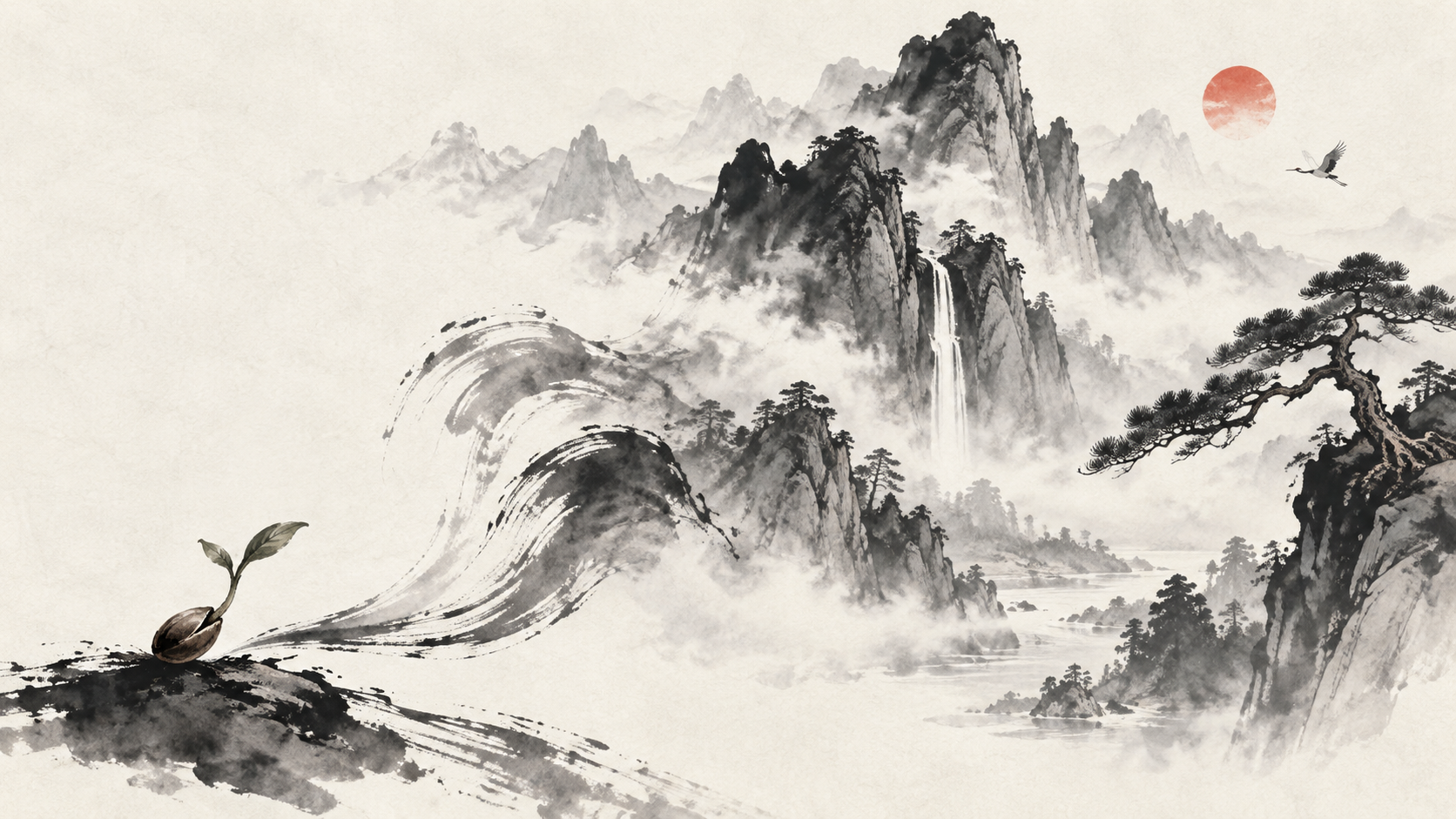
Seedream 5.0 is a useful subject for a practical question: how do you turn a visual idea into a sequence of deliberate creative decisions? The answer starts with choosing the right mode, explaining the role of your references, and reviewing what actually changed after each generation.
ByteDance presents Seedream 5.0 Lite as a model emphasizing understanding and reasoning within image creation, and describes Seedream 5.0 Pro as a multimodal image-generation model for creative production. Those descriptions establish the model family; they do not replace testing a specific brief. Explore on Genoriq: Seedream 5.0 Lite · Seedream 5.0 Pro.
This article explains the options configured in Genoriq and an original workflow for using them. The prompts are writing examples, not a comparative benchmark.
Understand the options on Genoriq
Genoriq lists Seedream 5.0 Lite and Seedream 5.0 Pro, with text-to-image and image-editing variants. Choose text-to-image when you want the model to invent the initial visual. Choose the editing mode when an existing image should guide the result.
The current Lite form offers 2K and 4K resolution choices. The current Pro form offers 1K and 2K. Both expose an aspect-ratio selector and a quantity control. These are Genoriq's configured options, not an exhaustive statement of everything the model family might support elsewhere.
That difference is a reason to inspect the actual form rather than infer a hierarchy from the word “Pro.” Select the entry that fits the workflow and delivery requirement, then evaluate its output. Do not assume that a name establishes speed, cost, or superiority for your project.
Start with a deliverable, not a style collection
Imagine you need a product visual for a handmade ceramics shop. Define the required object, the intended crop, and the mood. Decide whether the product must match an existing photograph or whether it is only a fictional concept.
For an existing product, start with a clear reference. Keep the silhouette readable, avoid heavy compression, and remove irrelevant visual clutter when possible. For an invented product, write a concrete description of shape, material, and color.
Choose one primary visual direction. “Soft daylight in a quiet studio” is coherent. Combining nightclub lighting, rustic interiors, luxury minimalism, and watercolor texture in the same prompt makes it harder to identify why an output does or does not fit.
A first-generation workflow
Open Seedream 5.0 Lite or Seedream 5.0 Pro. Select the appropriate generation mode and inspect its required inputs.
Set the aspect ratio to match the final placement. Begin with one output so that you can evaluate the direction without sorting through a large batch. Choose a supported resolution that lets you inspect the detail important to the brief.
Write the prompt in the order a reviewer would assess the image: subject, arrangement, lighting, material, and constraints. Generate, then compare the result against those same points. Keep a short note about the most important correction before making another attempt.
Prompt one: an original product scene
Create a product photograph of a small cream ceramic pitcher with a broad curved handle, standing on a pale limestone shelf. Three-quarter view, with the spout clearly visible. Soft daylight from a tall window creates gentle shadows. Add a single folded linen cloth behind the pitcher, with no other decorative objects. Quiet, tactile, natural atmosphere. Leave the right side uncluttered for a short headline. No text or logos.
This prompt gives the model a limited scene with a clear focal point. Inspect the spout and handle before judging the background. A pretty surface is not useful if the defining object has an impossible shape.
For a different campaign, revise the material and setting while preserving the composition. This makes the brief reusable without turning every image into the same design.
Prompt two: change the setting, preserve the object
Upload a suitable product image and use the editing mode.
Keep the product from the reference image as the main subject. Preserve its shape, proportions, surface color, handle, and visible details. Replace the surrounding setting with a pale wooden table near a softly lit kitchen window. Maintain a believable contact shadow beneath the product. Remove unrelated background clutter. Do not add lettering or change the camera angle substantially.
The important part is the division between change and preservation. The setting can move; the product identity should remain stable. Examine the edited image alongside the reference, including small edges and reflections.
If the product drifts, simplify the requested change. Try replacing only the surface first, rather than asking for a completely new room, lighting system, and viewpoint in one step.
Prompt three: an editorial composition
A tactile paper-and-ceramic illustration about growing an idea. A small open seed sits in the lower center, with three simple sculptural leaves emerging upward. Warm ivory background, muted green and terracotta accents, soft directional studio light. Balanced asymmetrical composition with generous breathing room. Visible paper fibers and matte ceramic texture. No lettering, no logos, and no interface graphics.
Use this for exploring a visual language rather than demonstrating factual information. If the image will become a series, record the palette, material language, and light direction so later prompts can retain those choices.
Keep exact editorial text outside the image when you need dependable typography, localization, or accessibility. The graphic can communicate the metaphor while the webpage supplies the words.
Compare Lite and Pro using a repeatable brief
Run the same meaningful scene through both entries with comparable composition and output settings where available. Because the resolution menus differ, record those differences instead of pretending the test is perfectly identical.
Review reference preservation, object structure, prompt adherence, and ease of revision. Use labels such as “usable,” “needs a small edit,” or “needs another attempt.” Avoid treating one attractive result as proof of a universal winner.
Check the current credit information before submitting. This guide does not give fixed prices or performance estimates because those need to match the active service and configuration.
Common questions and useful fixes
Should I choose the largest resolution immediately? Only if the task requires it for a meaningful evaluation. A larger image cannot repair an incorrect product shape or a weak composition.
Can I ask for several changes in one edit? You can write that request, but separating changes makes the result easier to evaluate. Preserve a successful stage before moving to the next one.
Why does the object change despite a preservation instruction? Image editing remains generative. Strengthen the reference, reduce the scope of the edit, and inspect the outcome rather than assuming that preservation is exact.
Where should I begin? Choose one subject, one setting, and one required invariant. Open the relevant Seedream workspace, make a small initial attempt, and use a specific revision to move toward the finished asset. The quality of the workflow comes from clear decisions and careful review, not from collecting more prompt adjectives.