From Still Image to Video: A Practical Beginner's Guide
Genoriq Team · Oct 5, 2026
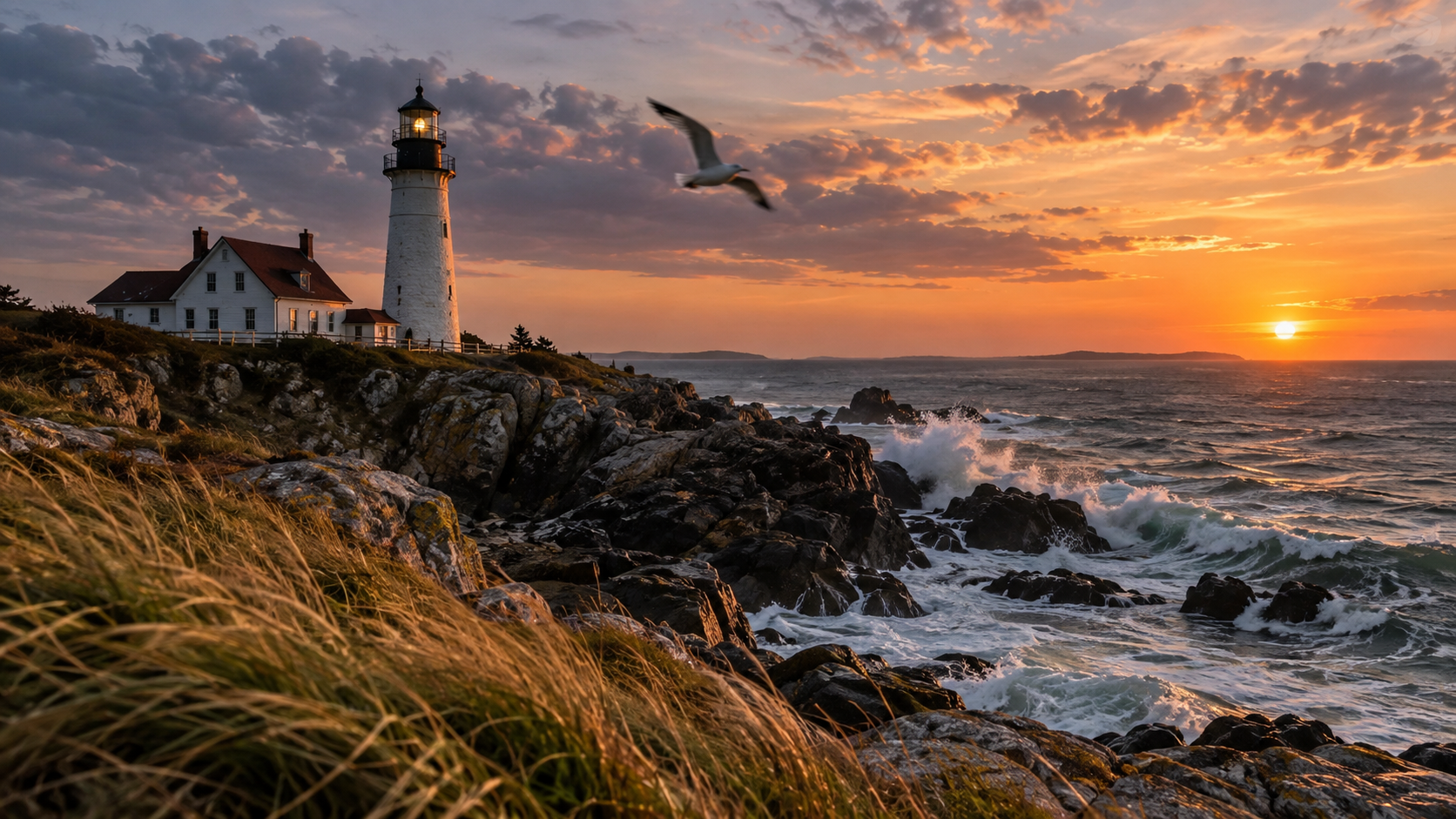
A strong image-to-video result begins before you press Generate. The reference image establishes the scene, but the prompt has to explain what should happen within it. If you ask for too many actions, a complicated camera move, and a scene change at once, it becomes difficult to tell which part of the brief caused a problem.
Start with one shot and one main action. Once that works, you can build a sequence from separate clips in your video editor. This guide walks through that process using examples for a product, a portrait, and a landscape.
The prompts below are original writing examples. They have not been presented as tested results, and the article's cover is editorial artwork rather than a sample from a video model.
Choose an image that supports the action
Look for a clear subject, a readable silhouette, and enough surrounding space for the intended movement. If a person's hands are already cropped out, a prompt asking them to wave introduces visual information the model must invent. If the product fills the entire image, a wide camera orbit asks the model to imagine unseen surfaces.
Check the image at the size where you intend to use it. Blurred details, confusing reflections, and existing anatomical errors may become more noticeable when animated. Improving the starting image can be more useful than rewriting the video prompt repeatedly.
Decide the final format early. A portrait reference is a natural starting point for a vertical clip. Cropping a landscape scene after generation may remove the action or make the subject feel cramped. Use the available aspect-ratio and reference controls deliberately.
Write a small shot plan
A shot plan can be just three lines:
- What the viewer sees at the beginning.
- What changes during the shot.
- What should remain stable at the end.
For example, a mug begins on a table, steam rises while the camera moves slightly closer, and the mug remains centered with its handle visible. That is a complete short scene. There is no need to add a second location, a new character, or an elaborate reveal.
Distinguish subject motion from camera motion. “The dancer turns toward the window” describes the subject. “The camera slowly moves sideways” describes the viewpoint. Either can carry a shot; both together require a clearer brief.
Example one: a product moment
Use a clean photograph of a ceramic mug with room above it.
Animate the supplied product image as one continuous shot. A thin trail of steam rises gently from the mug and disperses naturally. The camera makes a very slow, short push toward the mug. Keep the mug's shape, handle, blue glaze, and position stable. The table and background remain still. Soft morning light, restrained motion, no new objects and no scene transition.
Notice the modest scale of the action. Steam and a small camera move create visual interest while keeping the product easy to inspect. A fast orbit would introduce a different challenge: reconstructing the unseen side of the mug.
After generation, examine the handle, rim, and any visible lettering throughout the clip. An attractive opening frame is not enough if the product changes shape halfway through.
Example two: a natural portrait
Use an image with a clear face, visible shoulders, and a simple background.
The person in the reference image breathes naturally, blinks once, and makes a small relaxed turn toward the window. A few strands of hair move gently. Keep the camera fixed, preserve the face and clothing, and maintain the soft daylight. The expression remains calm. One continuous portrait shot with no cuts or additional people.
Small movements give you a focused evaluation task. Watch the eyes, mouth, and hairline, and check whether the person's identity stays consistent. If the head movement causes visible distortion, reduce the turn and test again.
Avoid adding a spoken line unless the selected workflow explicitly supports the audio and speaking behavior you need. Portrait animation and a controlled talking-head production are different requirements.
Example three: a landscape reveal
Use a photograph with distinct foreground and background layers.
Animate this coastal landscape with slow cloud movement and gentle waves reaching the shore. The camera drifts slightly forward along the path while the lighthouse remains stable in the middle distance. Preserve the coastline, building proportions, and horizon. Cool morning atmosphere, subtle movement, one uninterrupted shot with no weather change.
The scene has separate motion scales: clouds move slowly, water changes continuously, and the structure stays still. Those distinctions help make the prompt legible.
Review the horizon and building edges as well as the obvious water movement. If the landscape appears to bend, try a fixed camera first to isolate whether the problem comes from the motion of the scene or the change in viewpoint.
Select a mode and settings that match the plan
In Genoriq, open a video model and choose its image-to-video mode. Upload the required reference material, then inspect the current duration and output controls. Available fields differ between models; do not copy settings from another model without checking them.
For an initial attempt, choose a short duration supported by the form that gives the action time to read. Keep the requested movement simple. A longer clip is not automatically more useful, especially if you only need a brief transition in the final edit.
If the workflow exposes an audio option, decide whether sound belongs in this shot. You may prefer to add music or a separate sound effect later, when you can judge it in the full sequence.
Review the whole clip
Watch once for overall impression, then again for continuity. Pause near the start, middle, and end. Look for changes in object identity, flickering backgrounds, disappearing details, unintended camera movement, and an abrupt ending.
Write a specific revision note. “Keep the camera locked and reduce hair movement” gives the next attempt a clear direction. “Make it more cinematic” does not explain the problem.
Save the successful clip with its prompt and reference. If only part of it works, choose that section deliberately in your editor. Do not assume every generated frame needs to be used.
Build a sequence from successful shots
A short finished video can combine an establishing shot, a detail shot, and a quiet ending. Generate each around its own visual purpose, then check color, direction of movement, and subject consistency when assembling them.
Start in the AI video generator, or open Seedance 2.0 or Kling 3.0 Pro for their available workflows. One clear reference, one readable action, and a careful review will give you a more useful foundation than a prompt trying to direct an entire film at once.