Kling 3.0 on Genoriq: Standard, Pro, 4K, and Motion-Control Workflows
Genoriq Team · Oct 5, 2026
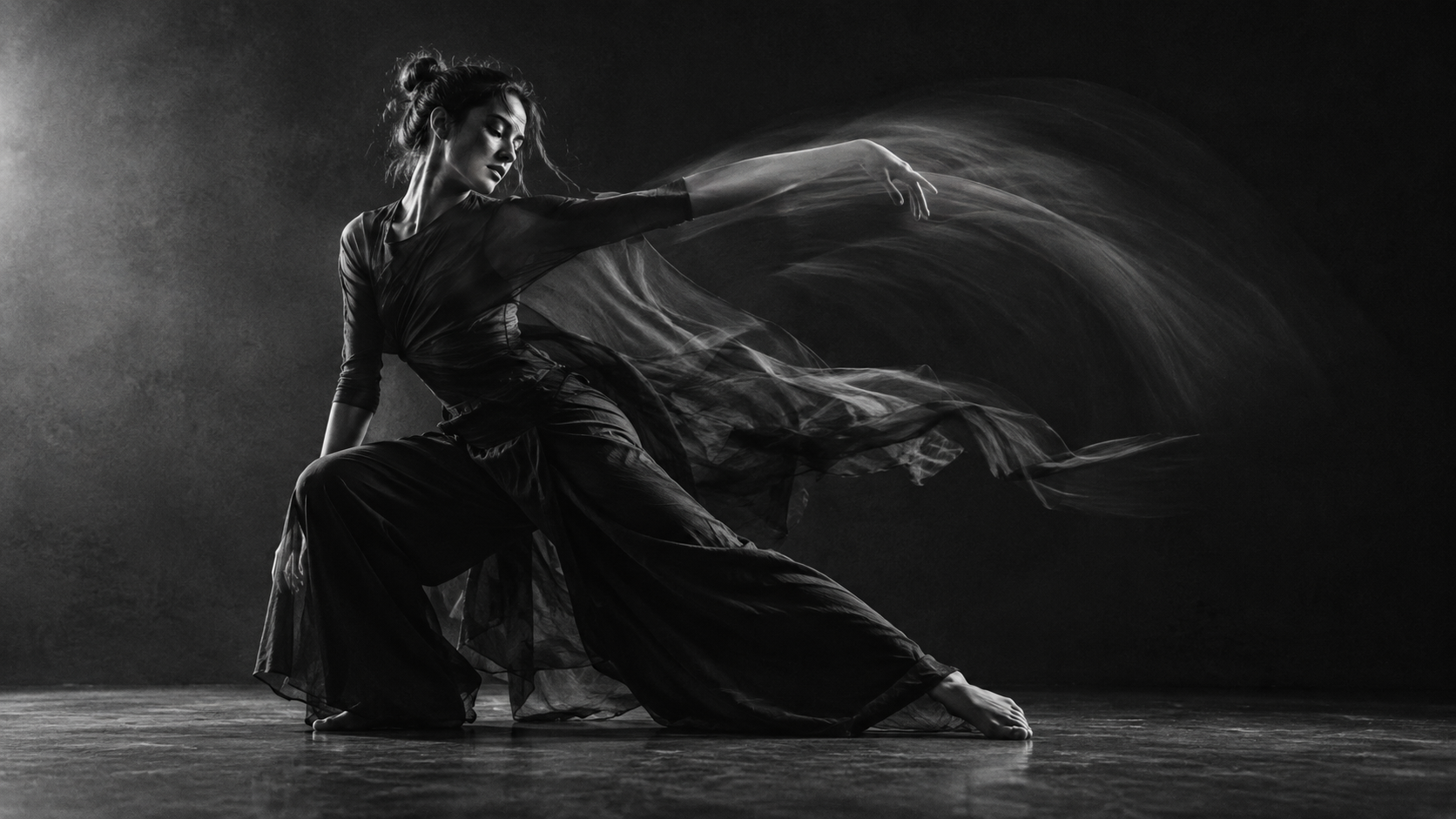
Kling 3.0 offers several paths into video creation, but the first decision is straightforward: are you inventing a scene, animating a still image, or using a reference performance to guide movement? Each path needs a different kind of brief.
Kuaishou introduced the Kling 3.0 family with video-generation, consistency, and audio capabilities. Its announcements cover several products and modes, including Omni offerings. Those wider capabilities should not be assumed to exist in every Genoriq entry. Explore on Genoriq: Kling 3.0 Std · Kling 3.0 Pro.
This article explains the site's configured choices and a practical process for preparing a shot. The examples are original prompts, not measured comparisons between the variants.
Choose a workflow before a variant
Genoriq lists Kling 3.0 Std, Kling 3.0 Pro, and Kling 3.0 4K. Std and Pro include text-to-video, image-to-video, and motion-control entries. The configured 4K entry includes text-to-video and image-to-video.
For an invented atmosphere scene, text-to-video can be a suitable starting point. For a product or character with an established appearance, image-to-video lets you supply the starting visual. For a movement you want to guide with an existing performance, inspect the motion-control workflow.
The 4K entry is a separate model choice in Genoriq, not a universal resolution switch applied to every Kling workflow. Kuaishou has also described native 4K output in the wider 3.0 series; always check the actual downloaded file for your chosen service. Explore on Genoriq: Kling 3.0 4K.
Understand the motion-control inputs
The current Kling 3.0 motion-control form requires one character image and one reference video. Its configured upload rules accept JPEG or PNG for the image and MP4 or MOV for the video, with a 10MB limit for each file.
The form requires a minimum side length of 300 pixels and accepts a width-to-height ratio between 0.4 and 2.5. The configured reference-video duration is 3–30 seconds. These are the site's current validation rules; they are not a claim about every Kling product.
Additional controls include character orientation, keeping original sound, and a negative prompt. Select the orientation source deliberately: the form distinguishes the image from the video. Review what the selected option produces instead of assuming it has the same meaning as a camera-direction instruction.
Prepare references that agree
A useful character image makes the relevant body parts visible. A useful motion reference has readable movement, limited obstruction, and framing that suits the intended output. If the action depends on footwork, a tightly cropped portrait is a poor visual starting point.
Try to keep the character's proportions and pose compatible with the motion. A seated reference image and a fast full-body jumping sequence introduce a larger reconstruction challenge than a standing character and a modest arm movement.
Choose a reference video whose action can be described simply. This makes it easier to judge whether the generated motion follows the important features, rather than being distracted by a complex background or rapid camera changes.
Prompt one: a text-to-video environment
One continuous shot inside a quiet art studio in late afternoon. A tall window lights a wooden worktable with a clay bowl and folded linen. Dust moves gently through the light. The camera makes a short, slow sideways move, revealing a little more of the tabletop. Keep the room geometry and objects stable. Warm, natural colors, restrained motion, no people, and no cuts.
Use this to establish a simple scene and a controlled viewpoint change. Check the table legs, window edges, and bowl shape throughout the clip.
If the room seems to stretch, try the same scene with a fixed camera. Changing one aspect of the prompt gives you a clearer explanation of what improved.
Prompt two: an image-to-video product detail
Supply a clear product reference in the corresponding mode.
Keep the shoe from the reference image stationary on the studio platform. Preserve its silhouette, laces, sole, and color blocking. The camera moves gently closer from the original angle while a soft highlight reveals the surface texture. The background remains plain and the platform does not rotate. One clean continuous shot with no hands, extra products, or scene transitions.
This brief avoids asking the model to reconstruct every hidden angle of the shoe. It is designed around a modest change that you can inspect closely.
Review the laces and sole edges in addition to the overall silhouette. Fine repeated details can change while the product still appears correct at a quick glance.
Prompt three: guide a small performance
Use a compatible character image and a reference video showing a slow, readable gesture.
Follow the reference video's relaxed arm gesture and gentle weight shift. Preserve the character's appearance and clothing from the supplied image. Keep the character clearly visible against a simple studio background. Movement should remain natural and restrained, with stable hands and a consistent face. Avoid adding objects or changing the scene during the action.
The reference video supplies the principal movement; the text clarifies the intended presentation and preservation priorities. Do not overload the prompt with a second, conflicting action.
Begin with a modest performance before attempting a complex dance or a scene with frequent occlusion. Review the relationship between hands, arms, and torso rather than judging only the overall energy.
Configure the ordinary video modes carefully
The text and image modes expose different controls from motion control. In the current Genoriq form, duration, aspect ratio, negative prompt, and an audio option may appear according to the chosen entry.
Use a supported short duration for an initial shot and choose the final framing early. If audio is enabled, review it as an additional output requirement. An otherwise useful visual clip may need a different soundtrack in the final edit.
Do not interpret a field without an explicit upper bound as unlimited provider support. Keep requests modest and use the service's validation feedback if a chosen setting is rejected.
Compare variants through a real brief
For a Std-versus-Pro comparison, reuse the same input and main prompt. Review whether the action reads clearly, the identity stays stable, and the result needs another generation or only an edit in your timeline.
For a 4K delivery, inspect dimensions and fine detail in the downloaded result. A higher-resolution workflow should be selected because the placement requires it, not as a substitute for solving a confused shot.
This guide does not claim that one variant always wins or give fixed generation times. Evaluate the current service with your actual material and check the credit information before submitting.
Finish with a continuity check
Watch the complete clip, then inspect the start, middle, and end. Check faces, hands, object shapes, background geometry, camera direction, and the final moment. Save the prompt and references alongside the selected result.
Open Kling 3.0 Std, Kling 3.0 Pro, or Kling 3.0 4K to choose the workflow that fits your inputs. Clear references and a small, testable shot plan make the choices easier to evaluate.
Common questions
Does choosing 4K fix an awkward performance? Resolution and motion quality address different problems. Correct the action, framing, and reference choice before relying on a resolution change.
Is motion control the same as ordinary image-to-video? No. Use the dedicated workflow and provide the required character image and motion-reference video.
Can a complex reference be copied perfectly? Do not assume exact reproduction. Start with a readable action and check framing, body movement, and subject consistency across the output.