Kling Motion Control Tutorial: Image vs Video Orientation Explained
Genoriq · Oct 29, 2026
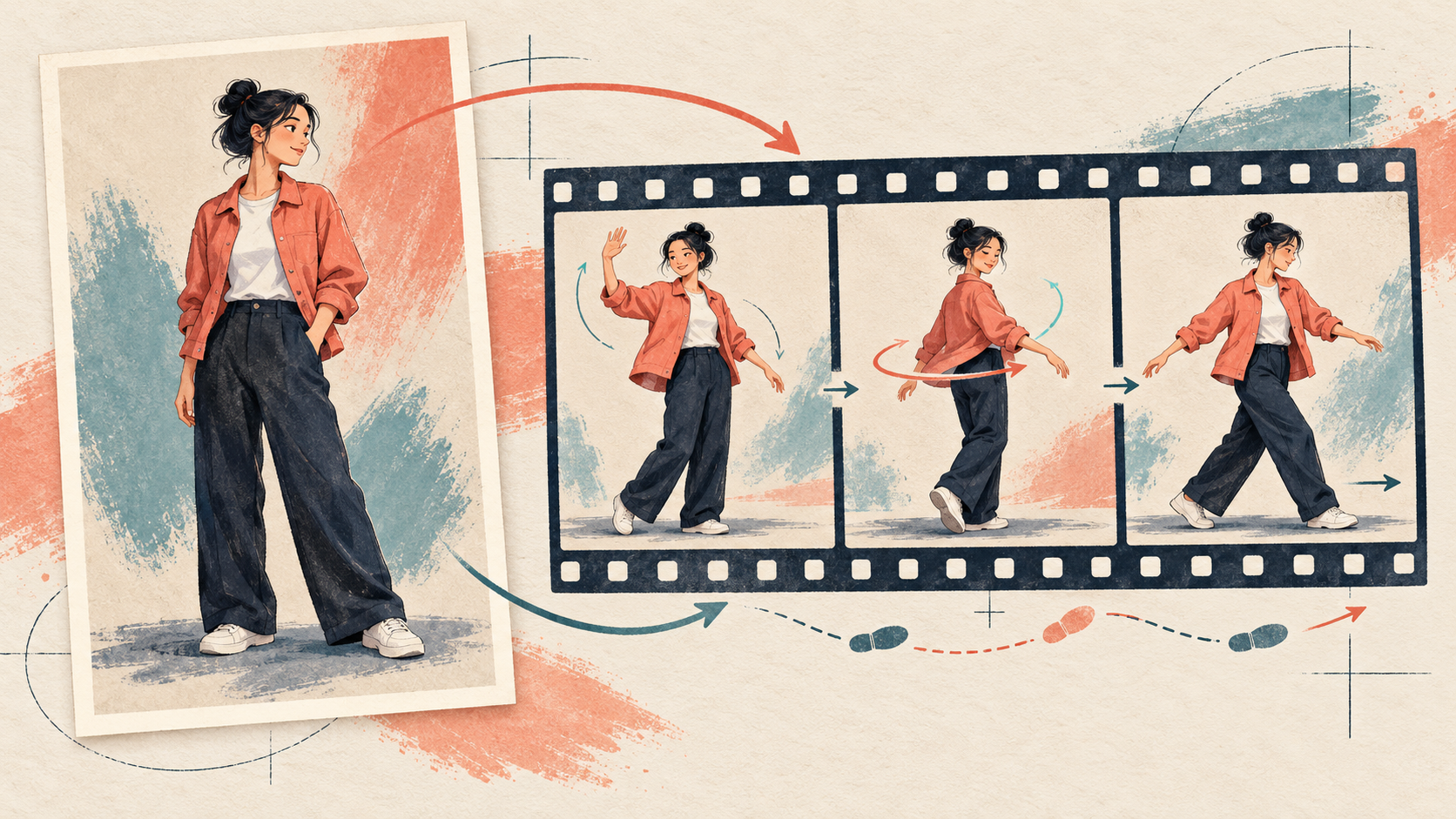
In Kling Motion Control, Image and Video choose the reference used for the character's facing and orientation. They do not mean portrait versus landscape, and they do not switch between image-to-video and text-to-video. Both choices still use a character image and a motion reference video.
This Kling Motion Control tutorial explains the image vs video choice through three small performance briefs. Open Kling 3.0 Pro on Genoriq and select Motion control to follow along. The examples are original planning exercises, not claims of measured model performance.
What Image and Video orientation change
Choose Image when the character's facing in the still photograph is the composition you want to anchor. The movement reference supplies the performance, while the image guides the facing. A restrained greeting is a useful first experiment because it does not require the body to rotate through several views.
Choose Video when matching the reference performer's facing and changes of direction matters most. A quarter turn or a short sequence of steps is easier to brief when the reference already shows the performance you need.
Neither setting guarantees perfect movement. An incompatible pose or tightly cropped source can still make the transfer difficult.
The official Kling Motion Control guide describes the reference-based workflow. Some official-platform features, such as facial element binding, are not part of the current Genoriq form. This walkthrough uses only its image, video, orientation, prompt and sound controls.
Prepare two references that can work together
Use a clear image with one obvious adult subject. Show the parts of the body that will move: a waving hand needs room beside the shoulder, while dance steps need visible feet and floor. Avoid starting with a close-up and expecting the model to reconstruct an entire body convincingly.
Choose a continuous clip containing one performer, one readable action and little camera movement. Record your own performance or use material you have permission to upload.
The current Genoriq Kling 3.0 motion-control upload rules are:
- One JPEG or PNG character image, up to 10 MB, with a minimum side length of 300 pixels.
- One MP4 or MOV reference video, up to 10 MB, with a minimum side length of 300 pixels and a duration of 3–30 seconds.
- For both inputs, a width-to-height ratio between 0.4 and 2.5.
These upload checks do not guarantee acceptance of every length and orientation combination. Start with five seconds, follow further model validation and trim or re-export when needed.
Set up the first generation
- Open Kling 3.0 Pro and choose Motion control, rather than ordinary Image to video.
- Upload the character image and the matching performance clip.
- Set Character orientation deliberately to Image or Video. Do not choose it based on whether the file is vertical.
- Add a short prompt describing the scene and details to preserve. Let the clip carry the choreography.
- Turn Keep original sound on only when you want the reference audio included; otherwise leave it off for this exercise.
- Generate and review the entire clip, including the first and last frames.
For the difference between this workflow and the other Kling modes, see the existing Kling 3.0 overview.
Three focused motion-control exercises
1. A small wave: begin with Image orientation
Prepare a waist-up image of a person facing the camera, with empty space beside one shoulder. Record a five-second clip that begins at rest, includes one small wave and returns to rest. Keep the performer facing forward so the references do not disagree about a turn.
Keep the character from the reference image in a quiet, softly
lit studio. Preserve their clothing, hairstyle and overall
appearance. Follow the restrained greeting in the motion
reference, with the hand comfortably inside the frame. Keep the
camera steady and the background simple. Maintain a relaxed
expression and believable hand proportions. No extra people,
additional gestures or scene changes.
Watch the fingers, wrist and shoulder together. If the hand clips the edge, give it more space in both references; adding “perfect hands” to the prompt cannot create missing framing.
2. A quarter turn: begin with Video orientation
Choose an image with a posture close to the video's starting pose. Record one quarter turn, a pause and a return. Avoid a full spin, which exposes more unseen details.
Use the character's existing outfit and appearance in a plain
studio setting. Follow the single gentle quarter turn and return
shown in the motion reference. Keep the floor, lighting and
camera position stable. Preserve the outfit's color and
silhouette throughout the turn. Keep the movement restrained,
with no additional rotation, costume change or cut to another
viewpoint.
Inspect the middle of the turn, not just the opening portrait. If the face changes or the jacket redraws itself, simplify the action and choose a clearer source with a closer starting angle.
3. Two sideways steps: begin with Video orientation
Use a full-body image and a five-second reference containing two small steps and a pause. Keep arms separated from the torso and both feet visible.
Animate the reference character in a simple rehearsal room using
the two small sideways steps from the motion video. Keep the
camera fixed and the complete body visible, including both feet.
Preserve the clothing and hairstyle. Maintain clear separation
between the arms and torso, steady floor contact and a calm
background. Add no new choreography, jumps, spins, people or
camera moves.
Check foot contact, leg crossings and whether the character slides after stopping. If something fails, shorten the action before adding more descriptive text.
Diagnose the problem before changing the prompt
Wrong facing or turn direction: confirm which orientation source you selected, then compare the starting poses. Change only the orientation setting for a deliberate comparison; do not simultaneously replace both references.
Hands or feet disappear: check the full reference clip for cropped limbs and make sure the still leaves movement space. A setting change cannot reliably compensate for missing visual information.
The character changes during motion: reduce occlusion, use a sharper image and try a smaller turn. A request to preserve identity is useful direction, not a guarantee.
The uploaded clip is rejected: check its duration, format, dimensions and size against the form. Use a simpler re-export rather than adding file requirements to the text prompt.
Common questions
Is Image orientation the same as image-to-video? No. Motion control uses a driving video in addition to the image. Ordinary image-to-video is a separate generation mode.
Should every dance use Video orientation? It is a practical starting point when the performer's changes of direction matter. The references and desired composition still determine whether it works for your shot.
Do I need a long prompt? Start with a short scene brief. The reference video should already show the motion you want; contradictory choreography in the prompt makes the intention less clear.
Try one short movement in the Kling motion-control workspace, review it, then change one variable. Genoriq controls and the linked official guide were checked on October 29, 2026.
Cover: an original concept illustration created with OpenAI image generation. The character and motion panels are illustrative; they are not Kling-generated frames or test results.