Nano Banana Product Background Prompts: Keep Packaging Accurate
Genoriq · Oct 24, 2026
A background replacement can make a product photo feel ready for a campaign while quietly changing the thing you sell. The pouch becomes wider, a mug handle shrinks, or a small line of packaging text disappears. These Nano Banana product background prompts treat the original product as the reference to protect and the surrounding scene as the part to redesign.
Open Nano Banana Pro on Genoriq and choose the image-editing mode. The prompts are original starting points, not measured tests or guarantees of exact preservation.
Prepare a source that can survive the edit
Use a sharp product photograph with the whole outline visible and enough empty space around it. Keep the original camera angle modest: a clear front or three-quarter view is easier to compare than a dramatic perspective. Make sure the base touches a visible surface. An existing contact shadow helps you judge where the object belongs in the new scene.
Check the source at full size before uploading. Read every label line you expect to retain, inspect handles or closures, and look for reflections that already obscure important details. Keep a separate approved product photo or artwork file for comparison; the generated image should not become your new source of truth.
Write a short preservation checklist for the specific item. For a coffee pouch: overall proportions, top seam, side folds, printed label, and material finish. For a ceramic mug: rim thickness, handle opening, glaze pattern, and base.
Set up a controlled background replacement
- In the Nano Banana Pro workspace, select image editing and upload the product photo.
- Choose the delivery aspect ratio. A 1:1 composition suits a square asset; 16:9 leaves room for a banner.
- Select an available resolution: the current form offers 1K, 2K, and 4K. Resolution changes do not guarantee accurate label text.
- Paste one brief below and replace the product description with your actual item. Describe the surface, background, light direction, and the features that must remain unchanged.
- Inspect the result against the source before changing anything else.
Google's official Nano Banana Pro prompting guide recommends explicit editing instructions and clearly assigned reference roles. It also acknowledges limitations in fine details, small text, and complex edits. Treat a preservation instruction as a request that requires inspection, not as a pixel lock. The Genoriq form and options here were checked on October 24, 2026.
Five copy-ready product background prompts
1. Neutral studio surface for a labeled pouch
A simple scene makes changes easier to spot.
Edit the supplied photograph of a coffee pouch. Replace the surrounding
background with a warm off-white studio sweep and a matte cream surface.
Preserve the pouch proportions, top seam, side folds, material finish,
printed label, logo and all existing text. Keep its camera angle and
position unchanged. Add a soft contact shadow directly beneath its base,
consistent with the source lighting. No extra products, no new text,
no props touching the pouch, no redesign of the packaging.
2. A kitchen setting for a handmade mug
Match the new surface to the source angle. Avoid requesting a view inside the mug if the original photograph never shows it.
Use the supplied ceramic mug photograph as the product reference.
Replace only the surrounding scene with a pale stone kitchen counter
and a softly blurred warm kitchen in the distance. Preserve the exact
visible handle opening, rim thickness, glaze pattern, silhouette and
camera angle. Keep the mug resting naturally on the counter with a
soft contact shadow matching the original light direction.
No added drink, steam, hands, utensils or lettering on the mug.
3. Gift-season styling for a boxed accessory
Use seasonal objects as background context, separated from the item. If the accessory is sold without gift wrapping, avoid imagery that makes added wrapping look like part of the included product.
Edit the supplied photo of a boxed accessory. Keep the product and its
box unchanged, including dimensions, opening state, visible contents,
printed details and surface finish. Replace the background with a muted
evergreen tabletop scene. Place a loose ribbon and a small paper star
well behind the box, separated from its outline. Match the original
light direction and add a grounded contact shadow. No wrapping around
the product, no extra accessories, no new logo or promotional text.
4. A wide campaign banner with space for copy
Ask for empty space where the headline will go, then add the real offer in your design tool.
Create a wide 16:9 campaign composition using the supplied product photo.
Keep the product on the right half at its original viewing angle and
preserve its proportions, material, packaging, logo and printed text.
Extend the surrounding scene into a quiet muted blue studio background.
Leave the left half visually empty for copy to be added later.
Maintain a realistic surface beneath the product and a matching contact
shadow. No generated headline, sale badge, price, extra item or pedestal.
5. A restrained outdoor setting for a fabric bag
Fabric edges and straps deserve particular attention because a plausible new fold can still misrepresent the item. Keep the bag on a surface rather than introducing a person who would change its shape.
Edit the supplied photograph of a fabric tote bag resting upright.
Preserve its silhouette, strap length, seams, printed design, fabric
texture and existing folds. Replace the surrounding background with a
quiet garden terrace and a simple pale wooden bench beneath the bag.
Match the source camera angle and lighting direction. Keep foliage
softly out of focus and away from the bag outline. No person, no added
contents, no changed print, no new folds or altered strap connections.
Review the product before judging the background
Compare source and output side by side at full size. First trace the outline: width, height, handles, corners, and closures. Next compare material cues such as matte versus glossy areas and repeated fabric details. Finally read the visible label word by word.
Then inspect the junction between product and surface. A dark halo, missing contact shadow, or shadow pointing against the original lighting can make the item look pasted in. Check reflections separately: changing the environment while preserving an old window reflection may create a mismatch. Ask for a simpler background before demanding a dramatic relight that could alter the product finish.
Fix the failure with the smallest useful change
The shape changed: return to the original image, keep its viewing angle, and remove any request to rotate or reposition the product. Name the specific feature that changed.
The label changed: retry with a cleaner source and less ambitious scene editing. If exact packaging text is essential, preserve the original product cutout in a conventional image editor and place it over a separately prepared background. Recheck the edges and shadow after compositing. Prompt wording alone cannot guarantee every printed detail.
The product looks detached: describe the surface directly beneath it and the light direction already present in the source. Compare at thumbnail size as well as full size.
Common questions
Can I use these for Black Friday? Yes: the wide banner leaves room for an editable offer.
Should I increase resolution to repair a logo? More output pixels do not establish which letters are correct. Fix the reference or use the approved original artwork, then verify the final exported asset.
How do I turn an approved photo into a video? Save the approved still first, then follow the separate product video consistency guide. For choosing an image workflow, see the Gemini model guide.
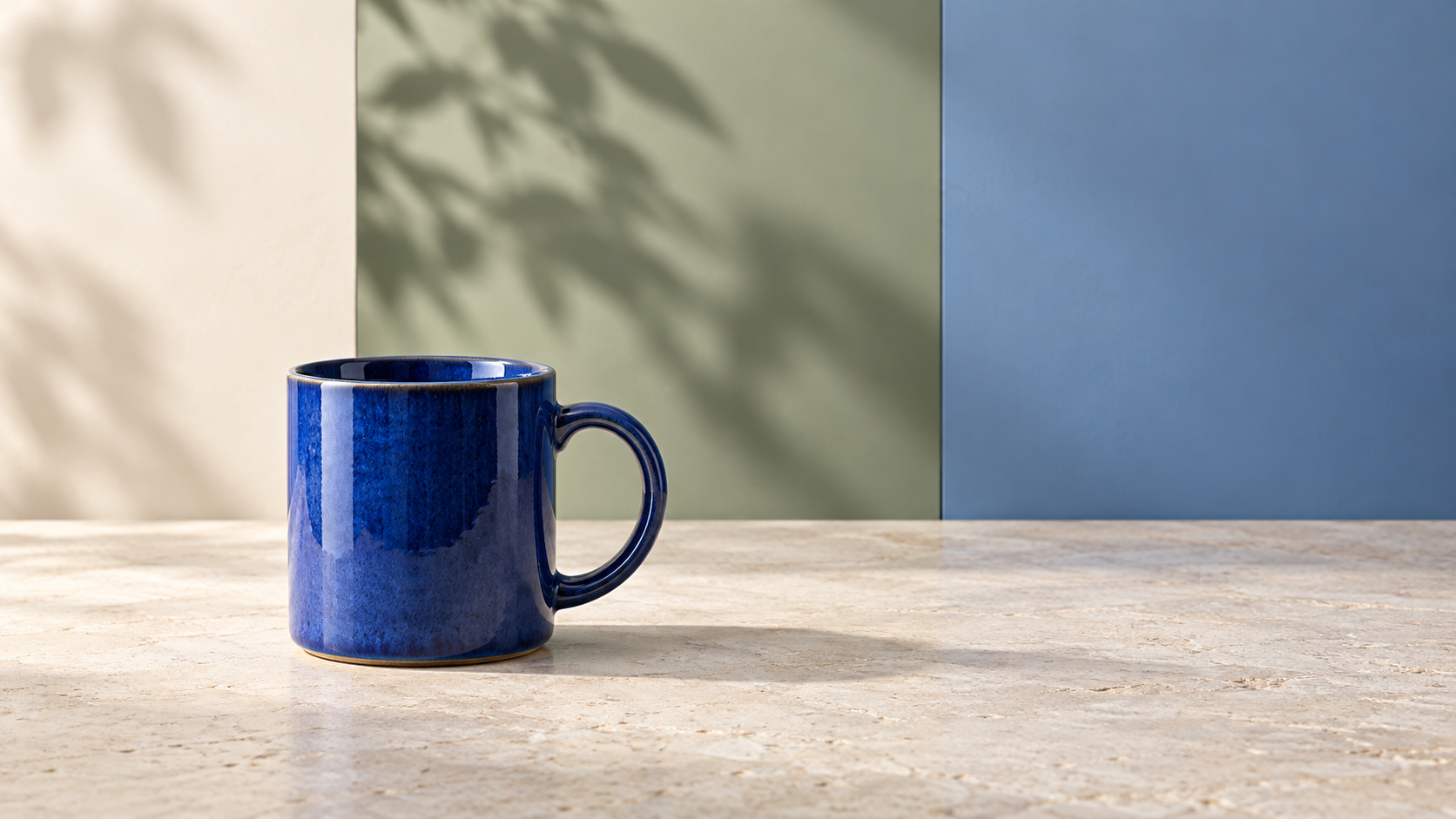
Cover: original concept illustration generated with OpenAI ImageGen. It illustrates background styling and is not a Nano Banana Pro test result or an actual seller's product photograph.