WAN 2.7 on Genoriq: A Practical Guide to Text, Image, and Reference-to-Video
Genoriq · Oct 16, 2026
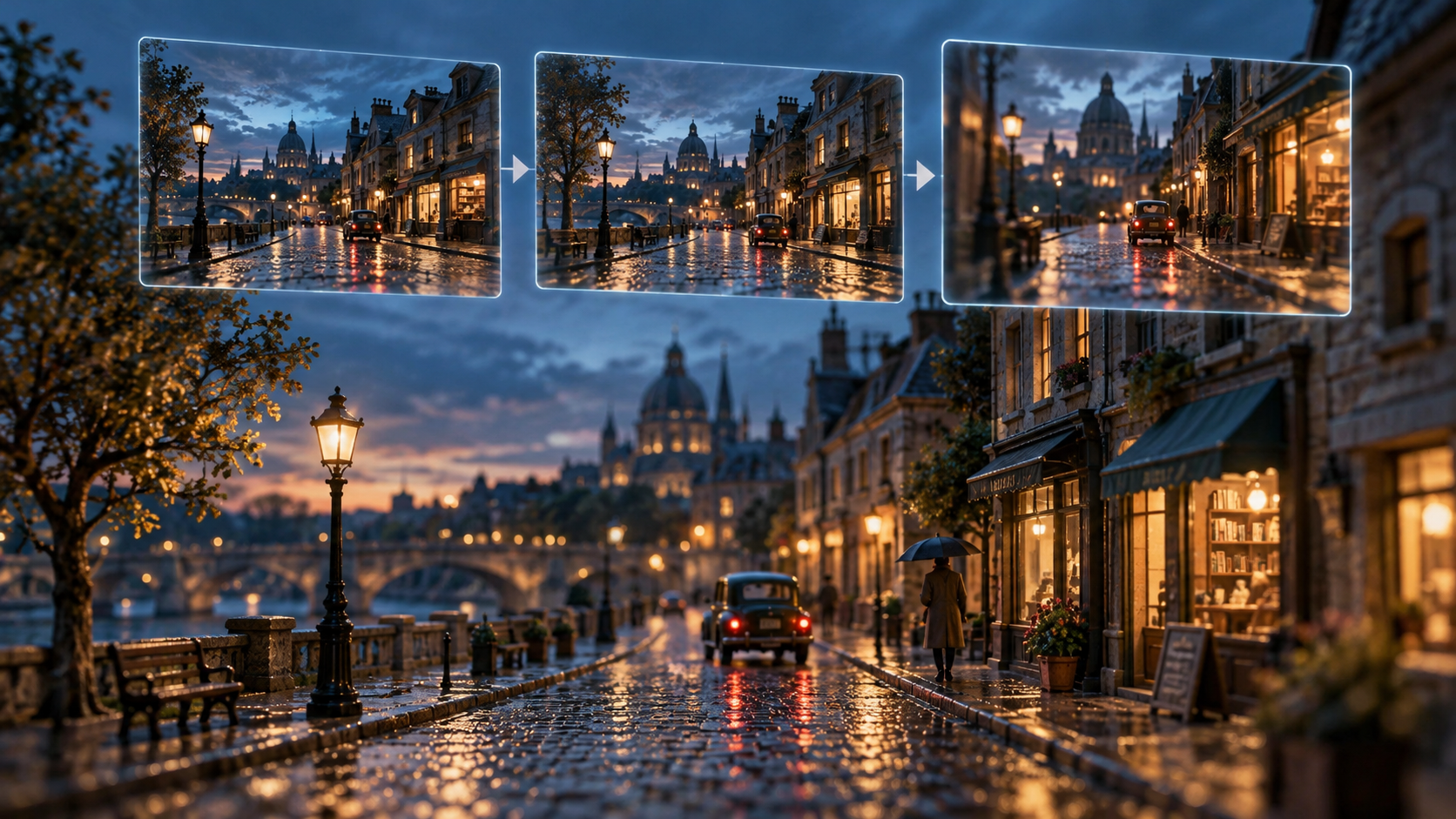
A short video needs a clear visual idea, a manageable action and a camera that supports both. Start with WAN 2.7 on Genoriq when you want to turn a written scene or existing visual material into a clip. This guide explains how to choose a mode and build a five-second brief without asking one shot to tell an entire story.
The examples below are original creative starting points, not results from a benchmark. Use them as briefs to adapt, then judge the generated video against the specific action and composition you requested.
Choose the mode around what you already have
Text to video is a useful starting point when the scene exists only in your description. Define the subject, setting and motion explicitly instead of relying on a string of visual adjectives.
Image to video starts with an image you upload. Describe what should move and what should stay visually stable. A product photograph already supplies shape and composition; the prompt should explain the intended animation.
Reference to video lets you work with reference material rather than inventing every visual detail in words. Explain the purpose of each supplied asset. A character reference can guide appearance, while a location reference can guide the setting. References guide the request; they do not guarantee identical details throughout the clip.
Set up a small, useful first attempt
Open the WAN 2.7 workspace, sign in and select the intended mode explicitly. For the examples here, choose 720p, 5 seconds and 16:9. These are editorial starting settings, not a claim that they are optimal for every project. Check the current form and displayed credit cost before submitting. Open Advanced settings to enter duration and a negative prompt.
The provider documentation describes audio input and negative prompts. Genoriq also exposes relevant controls, but provider features should not be assumed to exist in every interface. Use the fields actually shown for the selected mode. If you are learning the workflow, begin without extra audio so that visual timing is easier to evaluate.
Prepare references before writing more words
Choose clear images with a visible subject and enough room around it. Avoid asking a tightly cropped photograph to reveal large unseen areas in a dramatic orbit. For a character, prefer an unobstructed view of the face, outfit and silhouette. Supply only references that contribute a distinct visual instruction.
Write a short reference map: what each image controls, which traits must stay fixed and which parts may change. Check the upload requirements shown in the form. If you need help preparing a still image, read our image-to-video beginner’s guide.
Three original shot prompts
Keep these prompts in English when copying them into the workspace. The second and third examples require your own reference images. Set duration and resolution in the form as well as describing the intended shot.
1. A city atmosphere shot from text
A quiet side street just after rain at blue hour. Warm light spills from one small bakery onto wet pavement. One cyclist moves slowly from left to right in the middle distance. The camera makes a gentle forward push while keeping the bakery entrance near the center. Reflections shimmer slightly as the bicycle passes. Keep building geometry stable and the lighting consistent. One continuous five-second shot, realistic restrained motion, no cuts, no captions, no readable signs, no additional vehicles.
Evaluate the cyclist’s direction and the camera move separately. If the frame feels busy, remove the cyclist for the next attempt before adding other details.
2. Animate a product photograph
Use the uploaded photograph as the visual starting point. Preserve the bottle shape, cap, label placement and tabletop composition. The bottle remains stationary. A soft band of window light moves slowly across the ceramic surface while the camera slides slightly to the right. Keep the product fully inside the frame. Maintain a clean background and natural contact shadow. One continuous five-second product shot, no rotation, no new objects, no invented lettering, no scene transition.
Inspect the cap, outline and any existing label. Choose a small camera movement when product fidelity matters more than spectacle.
3. Give a reference character one action
Use the uploaded character image as the appearance reference. Preserve the character's face, short red jacket, dark trousers and overall proportions. Place the character at a quiet outdoor station platform in soft morning light. The character turns slightly toward the camera and gives one small wave. Keep the camera fixed at chest height in a medium shot. Maintain the same outfit and lighting throughout. One continuous five-second shot, one character, no costume changes, no cuts and no on-screen text.
Adjust the outfit description to match your actual reference. Review hands and facial continuity during the turn, not just the opening frame.
Refine the shot, then choose the final output
Change one major variable per attempt: subject motion, camera motion or lighting. If a shot contains unwanted cuts, a focused negative prompt such as “scene cuts, sudden camera shake, duplicate subjects” can clarify exclusions. It cannot guarantee that artifacts disappear, and a long list of unrelated exclusions can obscure the main brief.
Watch the full clip and check the beginning, midpoint and ending. Look for drifting geometry, unexpected objects and an action that ends before it becomes readable. Keep notes on what changed between attempts. Once the shot works, choose your delivery settings and inspect the new result again.
Explore other available options in the AI Video Generator, or return to WAN 2.7 with one of these briefs.
Sources and illustration note
Feature references checked October 16, 2026: WaveSpeed WAN 2.7 documentation and the current Genoriq workspace. The cover is an original concept illustration made with OpenAI image generation, not a WAN 2.7 video frame.